

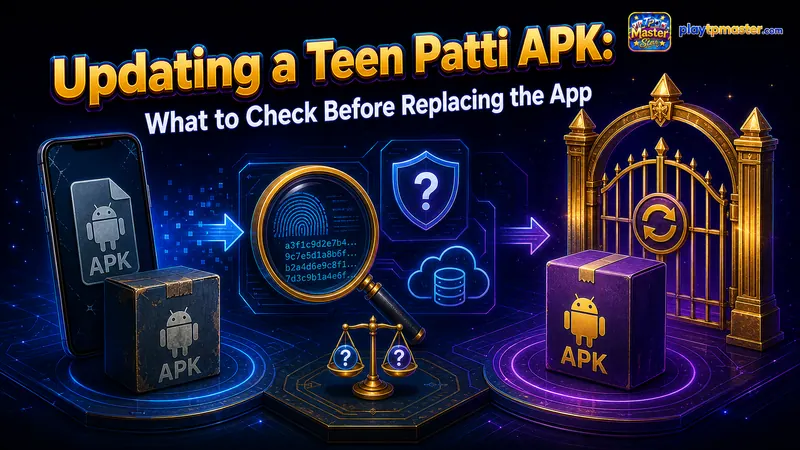
Updating a Teen Patti APK should begin with two checks: whether the file is a legitimate update for your installed application, and whether you can recover your account if something goes wrong.
An update can introduce fixes or compatibility changes, but an APK advertised as “latest” may belong to another publisher, use an incompatible signature or contain an older internal version.
Uninstalling your current app to make the new file install can also remove local information. That is particularly relevant when your access depends on a guest session.
This guide explains what to record, how Android recognises updates and what to do when a replacement file is rejected. It applies generally to Teen Patti applications rather than one verified publisher or release.
On this page
Record Your Current App and Account Details
Before downloading anything, open the installed game and record its displayed version, Player ID and login method.
Check whether you signed in through a supported account provider, phone number or guest option. Being able to open the game today does not necessarily mean you know how to sign back in after reinstalling.
If account binding is available, follow the publisher’s instructions and verify that the connection succeeded. Do not assume that entering an email address automatically created a recoverable account.
A screenshot can help support locate an account, but it cannot replace a valid recovery method.
Swipe sideways to see every column.
| Detail to record | Why it helps |
|---|---|
| App title and developer | Identifies the intended product |
| Package ID, if available | Distinguishes applications with similar names |
| Current version | Supports release and error comparisons |
| Player ID | Helps support locate the account |
| Login method | Determines the likely recovery route |
| Purchase references, when relevant | Supports purchase-related enquiries |
| Current error or update notice | Explains why the update is being attempted |
Keep these records private. Redact unrelated personal information before sending screenshots to support.
Confirm Where the Update Comes From
Begin with the same established distribution channel used for the installed app. If it came from Google Play, check the matching store listing first.
If the publisher distributes APKs directly, use a website whose connection to that publisher you can establish. A developer link on the verified store listing is more useful than an advertisement promising the newest release.
Treat update prompts inside browser pages carefully. A page claiming that your app has expired does not demonstrate knowledge of what is installed on your phone.
The filename is also weak evidence. Anyone distributing a file can call it latest, add a
future year or copy an established application’s name.
Compare the publisher identity and distribution path before considering the version label.
Understand What Makes an APK a Valid Update
Android evaluates more than the visible app name.
An accepted update requires the same application ID and an appropriate signing relationship with the installed version. Android also checks the internal version code; ordinary installation does not accept a lower code as an update. Google documents matching application identity, signing continuity or valid rotation, and a same-or-higher version code as platform update conditions. How Android app updates work.
These checks explain several confusing outcomes.
A similarly named APK with a different application ID may install as a separate app. That does not migrate your account.
A file using the same application ID but an unrelated signing certificate may be rejected. That rejection deserves investigation rather than an immediate uninstall.
The fact that a website calls its file an “update” does not override Android’s application identity checks.
Version Name and Version Code Are Different
The version name is the label users commonly see, such as 3.2.1. The version code is an internal integer Android uses for version ordering.
A higher-looking label does not necessarily indicate a higher internal code. Developers control these fields separately, although well-managed releases keep them understandable.
For example, a download page might advertise version 5.0, while the installed app reports 4.8. Those labels alone cannot establish whether Android will accept the file.
Android’s official versioning documentation explains the separate roles of these values and how lower version codes are blocked during ordinary updates. Android versioning documentation.
Most readers do not need to inspect an APK manually. The practical approach is to use the publisher’s supported update channel and ask support about unexplained version differences.
Check Compatibility Before Replacing a Working Version
Review the new release’s minimum Android requirement and any published device limitations.
A newer build may raise its requirements. If your phone is outside the supported range, repeatedly downloading the same APK will not change that.
Check available internal storage, ensure the phone has sufficient battery and use a stable connection for the download. Allow time for the process rather than beginning immediately before you need to leave or switch devices.
If the app requires additional content after updating, the first launch may involve a separate download. Follow the publisher’s guidance and distinguish that stage from Android’s installation process.
A supported update can still contain a defect. Read specific release notes where available, especially when they describe a fix for the problem you are experiencing.
Check Signing Information Without Overstating It
For technical users, Android’s apksigner tool can verify an APK’s signature and print
certificate details. That can help compare a file against a trusted reference. Official apksigner documentation.
However, successful signature verification means the package’s signature verifies. It does not independently establish that the signer is the developer you intended to trust.
A certificate fingerprint needs a trustworthy reference. Comparing two files obtained from the same unknown source only shows whether their signing information agrees.
A complete-file checksum answers another question: whether file contents match a reference. Legitimate new releases generally change file contents, so their complete-file hashes normally differ.
Avoid treating a matching name, a valid signature or a clean scan as a complete safety certificate.
Install the Update Without Uninstalling First
Once the source and compatibility checks are satisfactory, use the publisher’s supported update process.
A normal update is intended to replace application code while retaining existing app data. That intention does not guarantee that every publisher’s data migration works perfectly, which is why recording recovery details first matters.
If Android rejects the update, preserve the original installation and capture the exact message.
Do not follow a generic instruction to “remove the old version” before understanding the conflict. It may conceal a package or signature mismatch, and it changes the operation from an update to a fresh installation.
For an account that matters to you, support clarification is preferable to gambling on local data surviving removal.
What to Check After the Update
Open the app and confirm the displayed version. Then verify that the expected Player ID and account are present.
Check familiar settings and review any new permission requests. A request should make sense for a feature you intend to use.
If a different account appears, avoid making purchases or taking actions that could complicate recovery. Record what happened and contact the established support channel.
If the game crashes after updating, note when it fails: before login, after login or while opening a specific feature. That distinction helps separate application startup problems from account or server issues.
Try reversible steps such as restarting the phone. Keep clearing app data and uninstalling out of the first response while account access remains uncertain.
Why an Older APK Is Not a Simple Rollback
Installing an older file may be blocked by its lower version code. Even if installed through another process, it may be unable to read data changed by the newer release.
The service may also require a current client version. Replacing files locally does not restore discontinued server support.
An old APK obtained from an unknown archive adds another source to verify. A familiar interface is not evidence that the file is trustworthy or that its old defects have disappeared.
If a new update causes problems, ask whether the publisher offers a supported recovery path. Do not assume that retaining an old download guarantees a usable rollback.
Avoid Fake Update and Account-Recovery Prompts
An update should not require sending a password or login code to a person in a chat.
Be cautious if someone claiming to be support asks you to install a separate “verification” application, share your screen or pay a fee to preserve an account.
These requests should be checked through the support contact on the established listing. A message containing your username or game icon is not proof of authority.
Downloading and updating a game also does not establish that any advertised chips, prizes or balances have cash value. Evaluate those claims separately from the technical installation.
Frequently Asked Questions
Will an update delete my guest account?
A normal update usually retains local data, but recovery is not guaranteed. Confirm the publisher’s guest-account policy before making changes.
Can I update a store-installed app with a website APK?
It can be technically possible when Android’s identity and version requirements are satisfied. Publisher support and source verification still matter.
Should I uninstall after a signature conflict?
First establish why the signatures differ and how your account will be recovered. Removing the installed app should not be used to skip that investigation.
Does “latest version” mean safest?
The phrase itself proves nothing. Use a release distributed through a verified publisher channel, review relevant changes and keep your account recovery information ready.
Review cycle: every 90 days.